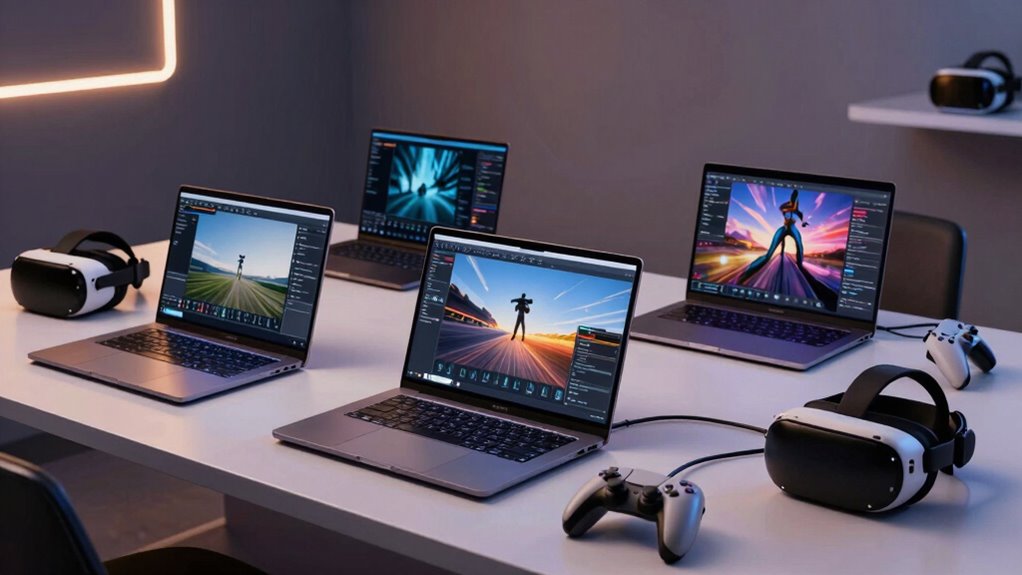

A VR-ready laptop for creators needs to run a headset and handle demanding creative work, so graphics capability, memory, ports, and cooling all matter. My best overall pick is the Acer Predator Triton Neo 16, whose RTX 4070 balances VR performance with a creator-focused display. The Lenovo ThinkPad P16 Gen 3 stands out for workstation-oriented projects and its 64GB of memory, while the ASUS ROG Strix G16 offers a gaming-led alternative with a fast 240Hz screen. The tradeoffs are clear: more graphics headroom can mean more weight and heat, while thinner or lower-cost models may call for lighter projects or reduced VR settings. Read on for the full breakdown and recommendations by workflow.

Get the latest gadgets delivered free with Prime
- Fast, free delivery on millions of items
- Prime Video, Amazon Music and more included
- Member-only deals all year
Complete the kit



Key Takeaways
- The Acer Predator Triton Neo 16 leads the all-around creator and VR balance in this lineup, pairing an RTX 4070 with 32GB of memory and a 165Hz display.
- The ThinkPad P16 Gen 3 is the memory and workstation specialist: its RTX PRO 2000 and 64GB RAM suit professional workflows, though its graphics configuration is not the same as a high-end GeForce gaming GPU.
- The ASUS ROG Strix G16 favors gaming and headset use with an RTX 4060, a fast 240Hz screen, and a powerful Core i9, but its gaming design is less creator-focused than the ProArt.
- The Acer Nitro V 16S and Lenovo IdeaPad Pro 5 point toward newer GeForce options, but buyers should verify exact GPU power, ports, and headset compatibility for the specific configuration.
- Older RTX 3060 and RTX 4060 models can still suit lighter VR creation, yet newer or higher-tier graphics options offer more room for demanding scenes and future workloads.
| Lenovo ThinkPad P16 Gen 3 Intel 16″ 3.2K OLED Touch Laptop with NVIDIA RTX PRO 2000, 64GB DDR5, 1TB SSD, Windows 11 Pro |  | Best for Professional Workstation VR | Processor: Intel Core Ultra 9 285HX vPro | Graphics: NVIDIA RTX PRO 2000, 8GB GDDR7 | Display: 16-inch 3.2K OLED touchscreen, 3200 × 2000 | VIEW ON AMAZON | See Our Full Breakdown |
| Lenovo IdeaPad Pro 5 16″ OLED Laptop with Ryzen AI and NVIDIA GeForce RTX 5050 |  | Best for Everyday Creator Versatility | Processor: AMD Ryzen AI Series | Graphics: NVIDIA GeForce RTX 5050, 4GB GDDR6 | Display: 16-inch OLED, 2880 × 1800, 120Hz | VIEW ON AMAZON | See Our Full Breakdown |
| ASUS ROG Strix G16 VR-Ready Gaming Laptop, 16″ QHD+ 240Hz, Intel i9-14900HX, NVIDIA GeForce RTX 4060, 32GB DDR5, 1TB SSD, RGB Backlit Keyboard, Webcam, WiFi 6, Windows 11 Home, Grey |  | Best for VR Gaming and High-Refresh Work | Processor: Intel Core i9-14900HX, 24 cores, 32 threads | Graphics: NVIDIA GeForce RTX 4060 | Display: 16-inch QHD+ (2560 × 1600), 240Hz | VIEW ON AMAZON | See Our Full Breakdown |
| ASUS ProArt StudioBook 16 OLED Laptop, 16” 3.2K Touch Display, Intel Core i9-13980HX, Nvidia GeForce RTX 4060, 16GB DDR5, 1TB SSD, Windows 11 Home, Mineral Black |  | Best for Touchscreen Creative Work | Processor: Intel Core i9-13980HX, 24 cores, 32 threads | Graphics: NVIDIA GeForce RTX 4060, 8GB GDDR6 | Display: 16-inch 3.2K OLED touchscreen, 120Hz | VIEW ON AMAZON | See Our Full Breakdown |
| MSI Creator M14 A13V 14″ 2.8K Laptop with Intel Core i7-13620H, 32GB RAM, 2TB SSD, NVIDIA GeForce RTX 4060, Windows 11 Home |  | Best for Compact Projects and Local Storage | Processor: Intel Core i7-13620H, 2.4GHz | Graphics: NVIDIA GeForce RTX 4060, 8GB | Display: 14-inch LED LCD, 2880 × 1800, 120Hz | VIEW ON AMAZON | See Our Full Breakdown |
| Acer Predator Triton Neo 16 Gaming Creator Laptop |  | Best for Color-Critical VR Creation | Display: 16-inch IPS, 3200 x 2000, 165Hz, Calman Verified | Processor: Intel Core Ultra 9 185H | Graphics: NVIDIA GeForce RTX 4070, 8GB GDDR6 | VIEW ON AMAZON | See Our Full Breakdown |
| Acer Nitro V 16S AI Gaming Laptop |  | Best for High-Refresh VR on a Practical Display | Display: 16-inch WUXGA IPS, 180Hz | Processor: AMD Ryzen 7 2600 (as listed) | Graphics: NVIDIA GeForce RTX 5060 Laptop GPU | VIEW ON AMAZON | See Our Full Breakdown |
| MSI Creator 15 Professional Laptop |  | Best for OLED-First Editing | Display: 15.6-inch OLED, 3840 x 2160, 100% DCI-P3 | Processor: Intel Core i7-11800H | Graphics: NVIDIA GeForce RTX 3060 | VIEW ON AMAZON | See Our Full Breakdown |
| vr ready laptop for creator | Processor | Graphics | Display | Memory |
|---|---|---|---|---|
| Lenovo ThinkPad P16 Gen 3 Inte | Intel Core Ultra 9 285HX vPro | NVIDIA RTX PRO 2000, 8GB GDDR7 | 16-inch 3.2K OLED touchscreen, 3200 × 2000 | 64GB DDR5 |
| Lenovo IdeaPad Pro 5 16" OLED | AMD Ryzen AI Series | NVIDIA GeForce RTX 5050, 4GB GDDR6 | 16-inch OLED, 2880 × 1800, 120Hz | 16GB LPDDR5x |
| ASUS ROG Strix G16 VR-Ready Ga | Intel Core i9-14900HX, 24 cores, 32 threads | NVIDIA GeForce RTX 4060 | 16-inch QHD+ (2560 × 1600), 240Hz | 32GB DDR5 |
| ASUS ProArt StudioBook 16 OLED | Intel Core i9-13980HX, 24 cores, 32 threads | NVIDIA GeForce RTX 4060, 8GB GDDR6 | 16-inch 3.2K OLED touchscreen, 120Hz | 16GB DDR5 |
| MSI Creator M14 A13V 14" 2.8K | Intel Core i7-13620H, 2.4GHz | NVIDIA GeForce RTX 4060, 8GB | 14-inch LED LCD, 2880 × 1800, 120Hz | 32GB |
| Acer Predator Triton Neo 16 Ga | Intel Core Ultra 9 185H | NVIDIA GeForce RTX 4070, 8GB GDDR6 | 16-inch IPS, 3200 x 2000, 165Hz, Calman Verified | 32GB LPDDR5X |
| Acer Nitro V 16S AI Gaming Lap | AMD Ryzen 7 2600 (as listed) | NVIDIA GeForce RTX 5060 Laptop GPU | 16-inch WUXGA IPS, 180Hz | 32GB DDR5 5600MHz |
| MSI Creator 15 Professional La | Intel Core i7-11800H | NVIDIA GeForce RTX 3060 | 15.6-inch OLED, 3840 x 2160, 100% DCI-P3 | 16GB DDR4 |
More Details on Our Top Picks
Lenovo ThinkPad P16 Gen 3 Intel 16″ 3.2K OLED Touch Laptop with NVIDIA RTX PRO 2000, 64GB DDR5, 1TB SSD, Windows 11 Pro
The ThinkPad P16 Gen 3 is the lineup’s workstation-first choice: its RTX PRO 2000 with 8GB GDDR7, Core Ultra 9 processor, and 64GB of RAM suit creators who pair VR development or simulation with demanding editing and 3D tasks. That memory headroom sets it apart from the IdeaPad Pro 5’s 16GB and the ProArt StudioBook’s 16GB, while its Windows 11 Pro setup and security features better fit managed work environments. The 3.2K OLED touchscreen also gives detailed color work a strong on-laptop workspace between headset sessions. The tradeoff is mobility: at 5.6 pounds, it is heavier than the ProArt and offers less gaming-focused display speed than the ROG Strix G16’s 240Hz panel. I’d choose it for workstation demands, not light travel.
Pros:- RTX PRO 2000 graphics and 64GB RAM suit demanding 3D, simulation, and multitasking workloads.
- High-resolution 3.2K OLED touchscreen provides a detailed canvas for editing and design.
- Windows 11 Pro, ThinkShield, fingerprint reader, and IR camera support professional and security-conscious workflows.
- Wi-Fi 7 and RJ-45 Ethernet offer flexible networking options.
Cons:- At 5.6 pounds, it is a substantial carry compared with smaller creator laptops.
- The 1TB SSD may fill quickly with large video, 3D, and VR project files.
- Battery life is not specified, making unplugged-work expectations difficult to judge.
Best for: VR creators, engineers, and technical artists who need 64GB of memory, workstation-class graphics, and Windows Pro features for complex projects.
Not ideal for: Creators who carry a laptop daily or prioritize a gaming-style high-refresh display; its 5.6-pound weight and 60Hz display specification is not provided.
- Processor:Intel Core Ultra 9 285HX vPro
- Graphics:NVIDIA RTX PRO 2000, 8GB GDDR7
- Display:16-inch 3.2K OLED touchscreen, 3200 × 2000
- Memory:64GB DDR5
- Storage:1TB SSD
- Operating system:Windows 11 Pro
- Weight:5.6 lbs
- Connectivity:Wi-Fi 7, Bluetooth 5.4, RJ-45
Our verdict“Choose the ThinkPad P16 Gen 3 when workstation memory, professional graphics, and business features matter more than a lighter travel load.”
Lenovo IdeaPad Pro 5 16″ OLED Laptop with Ryzen AI and NVIDIA GeForce RTX 5050
The IdeaPad Pro 5 makes the most sense for creators who want a balanced laptop for editing, design, and occasional VR work rather than a dedicated workstation. Its 16-inch 120Hz OLED display combines sharp 2880 × 1800 resolution with smooth motion, while the RTX 5050 gives it dedicated graphics absent from lighter general-purpose machines. It is easier to connect to a mixed creative setup than the ThinkPad P16, thanks to USB4, HDMI 2.1, and an SD card reader. The main compromise is its 16GB of soldered LPDDR5x memory: that is less room for heavy multitasking than the 32GB ROG Strix G16 or 64GB ThinkPad. Its RTX 5050 also has 4GB of graphics memory, so demanding VR scenes and large assets may call for more headroom.
Pros:- 16-inch 120Hz OLED offers a sharp, smooth workspace for editing and visual design.
- RTX 5050 provides dedicated graphics for creative applications and lighter VR workloads.
- USB4, HDMI 2.1, USB-A, and an SD card reader accommodate common creator peripherals.
- IR webcam with privacy shutter and built-in security features suit work and video calls.
Cons:- 16GB LPDDR5x memory is more limiting for complex VR projects than the 32GB or 64GB options in this lineup.
- RTX 5050 has 4GB of GDDR6 graphics memory, less than the 8GB RTX 4060 and RTX PRO 2000 options.
- Windows 11 Home lacks the Pro edition included with the ThinkPad P16.
Best for: Traveling creators who want an OLED editing screen, a current dedicated GPU, and convenient ports for cameras and external displays.
Not ideal for: VR developers running complex scenes or creators who routinely work with large projects; the 16GB memory and 4GB GPU memory leave less headroom than higher-memory alternatives.
- Processor:AMD Ryzen AI Series
- Graphics:NVIDIA GeForce RTX 5050, 4GB GDDR6
- Display:16-inch OLED, 2880 × 1800, 120Hz
- Memory:16GB LPDDR5x
- Storage:1TB NVMe SSD
- Operating system:Windows 11 Home
- Ports:2× USB-C (USB4), 2× USB-A, HDMI 2.1, SD card reader, 3.5mm audio
- Dimensions:14.05 × 9.88 × 0.7 inches
Our verdict“Pick the IdeaPad Pro 5 for a versatile OLED creator laptop and lighter VR work, but look to the ThinkPad P16 or ROG Strix G16 for heavier project headroom.”
ASUS ROG Strix G16 VR-Ready Gaming Laptop, 16″ QHD+ 240Hz, Intel i9-14900HX, NVIDIA GeForce RTX 4060, 32GB DDR5, 1TB SSD, RGB Backlit Keyboard, Webcam, WiFi 6, Windows 11 Home, Grey
The ROG Strix G16 is the clearest pick here for creators who also care about VR gaming and fast-moving previews. Its RTX 4060 and 32GB DDR5 give it a stronger memory balance for demanding creative multitasking than the IdeaPad Pro 5, while the i9-14900HX brings substantial CPU resources for compiling and rendering. The 16-inch QHD+ screen runs at 240Hz, a major distinction from the OLED-focused ProArt StudioBook and ThinkPad P16; that speed benefits gaming and responsive motion, though it does not make the panel a better color-work choice by itself. The tradeoffs are a gaming-oriented Windows 11 Home setup and a 5.51-pound chassis. Compared with the ProArt, it lacks a listed touchscreen, stylus support, and SD card reader.
Pros:- RTX 4060 graphics provide a capable dedicated GPU for VR and creative applications.
- 32GB DDR5 memory offers more multitasking headroom than the IdeaPad Pro 5 and ProArt StudioBook.
- 240Hz QHD+ display is suited to fast gameplay and fluid motion.
- Thunderbolt 4, HDMI 2.1, RJ-45, and multiple USB ports support a varied desk setup.
Cons:- At 5.51 pounds, it is less convenient for frequent travel than a smaller creator laptop.
- The listed display is not OLED or touchscreen, unlike the ProArt StudioBook and ThinkPad P16.
- Wi-Fi 6 is an older wireless generation than the Wi-Fi 7 listed for the ThinkPad P16.
Best for: Creators who split time between VR gaming, real-time previews, and CPU-heavy production work and want 32GB RAM out of the box.
Not ideal for: Color-focused artists who need a touchscreen, stylus workflow, or OLED panel; the ProArt StudioBook is more specifically equipped for those tasks.
- Processor:Intel Core i9-14900HX, 24 cores, 32 threads
- Graphics:NVIDIA GeForce RTX 4060
- Display:16-inch QHD+ (2560 × 1600), 240Hz
- Memory:32GB DDR5
- Storage:1TB SSD
- Operating system:Windows 11 Home
- Weight:5.51 lbs
- Connectivity:Wi-Fi 6, Bluetooth 5.2, Thunderbolt 4, HDMI 2.1, RJ-45
Our verdict“Choose the ROG Strix G16 if VR gaming and a fast display rank above OLED color work and stylus control.”
ASUS ProArt StudioBook 16 OLED Laptop, 16” 3.2K Touch Display, Intel Core i9-13980HX, Nvidia GeForce RTX 4060, 16GB DDR5, 1TB SSD, Windows 11 Home, Mineral Black
The ProArt StudioBook is the most purpose-built choice for creators whose VR work sits alongside hands-on illustration, photo editing, and video production. Its 3.2K OLED touchscreen, stylus support, and ASUS Dial create a more direct creative workflow than the gaming-focused ROG Strix G16, whose 240Hz panel favors motion rather than touch-based control. The RTX 4060 with 8GB VRAM gives it a capable foundation for VR previews and GPU-accelerated tools, and its Thunderbolt 4, HDMI 2.1, SD Express reader, and Ethernet make it well suited to a studio desk. The tradeoff is 16GB RAM, half the ROG’s 32GB and far below the ThinkPad P16’s 64GB. At 5.29 pounds, it is also a workstation to carry selectively, and the stylus is sold separately.
Pros:- 3.2K OLED touchscreen supports detailed visual work and direct interaction.
- RTX 4060 includes 8GB GDDR6 VRAM for creative GPU tasks and VR previews.
- ASUS Dial and stylus support add hands-on control options for compatible creative workflows.
- Thunderbolt 4, HDMI 2.1, SD Express 7.0, and RJ-45 suit studio connectivity.
Cons:- 16GB DDR5 is less suitable for memory-heavy VR projects than the ROG Strix G16’s 32GB.
- The stylus is sold separately.
- Its 5.29-pound weight limits its appeal as a frequent-travel laptop.
Best for: Illustrators, video editors, and 3D artists who want a high-resolution touchscreen, stylus compatibility, and a useful set of studio connections.
Not ideal for: Creators who need 32GB or more of memory for heavy VR multitasking, or buyers who want a stylus included and a lighter daily-carry laptop.
- Processor:Intel Core i9-13980HX, 24 cores, 32 threads
- Graphics:NVIDIA GeForce RTX 4060, 8GB GDDR6
- Display:16-inch 3.2K OLED touchscreen, 120Hz
- Memory:16GB DDR5
- Storage:1TB NVMe PCIe 4.0 SSD
- Operating system:Windows 11 Home
- Weight:5.29 lbs
- Connectivity:Wi-Fi 6E, Bluetooth 5, Thunderbolt 4, HDMI 2.1, SD Express 7.0, RJ-45
Our verdict“Pick the ProArt StudioBook for touchscreen and stylus-led creative work, provided its 16GB memory ceiling fits your VR workload.”
MSI Creator M14 A13V 14″ 2.8K Laptop with Intel Core i7-13620H, 32GB RAM, 2TB SSD, NVIDIA GeForce RTX 4060, Windows 11 Home
The MSI Creator M14 pairs an RTX 4060 with 32GB RAM and a 2TB SSD, making it a distinctive option for creators who carry active project files locally. That storage is double the 1TB drives in the ROG Strix G16 and ProArt StudioBook, while its 14-inch format occupies less desk space than those 16-inch models. The 2880 × 1800, 120Hz display keeps a high-resolution editing workspace in a smaller footprint, and the RTX 4060’s 8GB VRAM gives it a stronger graphics-memory listing than the IdeaPad Pro 5. The portability claim needs a caveat: the supplied weight is 6.2 pounds, heavier than the larger ThinkPad P16, so compact dimensions do not translate to a lighter carry. Its LCD panel also lacks the OLED positioning of the IdeaPad and ProArt.
Pros:- RTX 4060 with 8GB VRAM supports demanding creative graphics and VR tasks.
- 32GB RAM gives it more multitasking capacity than the IdeaPad Pro 5 and ProArt StudioBook.
- 2TB SSD provides more local project space than the 1TB drives in several alternatives.
- 14-inch 2880 × 1800 display offers high resolution in a smaller screen format.
Cons:- The stated 6.2-pound weight is heavier than every other listed laptop in this batch.
- LED LCD display lacks the OLED technology found in the IdeaPad Pro 5 and ProArt StudioBook.
- Windows 11 Home does not include the Pro edition offered on the ThinkPad P16.
Best for: Creators who want 32GB memory, an RTX 4060, and 2TB of internal project storage in a smaller-screen format.
Not ideal for: Frequent commuters seeking a genuinely lightweight laptop, or color-focused creators who specifically want an OLED display.
- Processor:Intel Core i7-13620H, 2.4GHz
- Graphics:NVIDIA GeForce RTX 4060, 8GB
- Display:14-inch LED LCD, 2880 × 1800, 120Hz
- Memory:32GB
- Storage:2TB SSD
- Operating system:Windows 11 Home
- Weight:6.2 lbs
- Ports:4× USB ports, 1× HDMI
Our verdict“Choose the Creator M14 if 2TB of storage and 32GB memory matter more than a light carry or OLED screen.”
Acer Predator Triton Neo 16 Gaming Creator Laptop
The Predator Triton Neo 16 balances VR-capable graphics with a display suited to editing and visual design. Its RTX 4070 and 32GB of memory give creators more headroom for 3D scenes and multitasking than the MSI Creator 15’s RTX 3060 and 16GB, while the Calman Verified 3200 x 2000 screen offers a sharper workspace than the Nitro V 16S’s WUXGA panel. The 165Hz refresh rate also supports smooth motion, though it matters less for color work than the display’s resolution and verification. At 4.5 pounds, it is easier to carry than the MSI, but it is still a substantial machine, and the supplied details do not specify battery life. I’d choose it for a mix of VR development, gaming, and color-aware creation—not for frequent travel or a guaranteed all-day unplugged workflow.
Pros:- RTX 4070 graphics and 32GB memory provide capable resources for VR projects and demanding creative multitasking.
- Calman Verified 3200 x 2000 IPS display gives creators a sharp, color-focused workspace.
- Thunderbolt 4, HDMI 2.1, USB-C DisplayPort, and MicroSD support flexible peripherals and media transfers.
- AeroBlade 3D fans and liquid metal thermal grease are designed to manage heat under sustained workloads.
Cons:- At 4.5 pounds, it is not a lightweight choice for frequent commuting.
- Battery-life details are not provided, making unplugged-work expectations hard to judge.
- The 165Hz panel and gaming-focused extras may matter less to creators who prioritize workstation features over gaming.
Best for: Creators who want a high-resolution, color-verified screen and RTX 4070 graphics for VR development, 3D work, and gaming in one laptop.
Not ideal for: Travel-first creators who need a light laptop or documented long battery life, and buyers who mainly need a portable editing machine.
- Display:16-inch IPS, 3200 x 2000, 165Hz, Calman Verified
- Processor:Intel Core Ultra 9 185H
- Graphics:NVIDIA GeForce RTX 4070, 8GB GDDR6
- Memory:32GB LPDDR5X
- Storage:1TB PCIe Gen 4 SSD
- Weight:4.5 pounds
- Connectivity:Wi-Fi 6E, Bluetooth 5.3
- Ports:Thunderbolt 4, USB-C with DisplayPort, two USB 3.2 Gen 2, HDMI 2.1, headphone jack
- Operating system:Windows 11 Home
Our verdict“Choose the Triton Neo 16 if you want RTX 4070 performance and a sharp, color-verified display for VR and creative work, and can accept its weight.”
Acer Nitro V 16S AI Gaming Laptop
The Nitro V 16S puts its emphasis on a fast gaming panel and current-generation graphics rather than high pixel density. Its RTX 5060, 32GB of DDR5, and 180Hz WUXGA screen make it a plausible fit for VR play and real-time creative previews, while the Predator Triton Neo 16 offers a much sharper 3200 x 2000 display for detailed editing. The Nitro’s stated 100% sRGB coverage is useful for standard-gamut work, but it does not give the same resolution advantage as the Predator. There is also a listing uncertainty: the processor is identified as “Ryzen 7 2600,” so I would verify the exact CPU before buying for a workload that depends heavily on processor performance. This pick suits creators who value refresh rate and memory capacity over a high-resolution canvas.
Pros:- RTX 5060 Laptop GPU supports ray tracing and neural rendering features for compatible creative and gaming workloads.
- 180Hz IPS screen can make fast-moving content appear smoother.
- 32GB DDR5 memory and a 1TB PCIe Gen 4 SSD provide useful capacity for multitasking and project files.
- Listed 100% sRGB coverage suits standard-gamut visual work.
Cons:- WUXGA resolution provides less workspace detail than the Predator Triton Neo 16’s 3200 x 2000 panel.
- The processor listing says “AMD Ryzen 7 2600,” a designation that should be confirmed before purchase.
- High-performance components may draw substantial power, and battery-life information is not supplied.
Best for: VR gamers and creators who want RTX 5060 graphics, 32GB RAM, and a high-refresh display for gameplay and real-time previews.
Not ideal for: Editors who need a high-resolution workspace, or buyers unwilling to confirm the listing’s ambiguous Ryzen 7 2600 processor designation.
- Display:16-inch WUXGA IPS, 180Hz
- Processor:AMD Ryzen 7 2600 (as listed)
- Graphics:NVIDIA GeForce RTX 5060 Laptop GPU
- Memory:32GB DDR5 5600MHz
- Storage:1TB PCIe Gen 4 SSD
- Color coverage:100% sRGB
- Wireless:Wi-Fi 6
Our verdict“Pick the Nitro V 16S for RTX 5060 graphics, 32GB RAM, and a fast 180Hz screen, but confirm the CPU listing and accept its lower-resolution display.”
MSI Creator 15 Professional Laptop
The MSI Creator 15 is the display-focused alternative in this group: its 4K OLED panel and stated 100% DCI-P3 coverage favor detailed image and video work over gaming-first speed. That screen is a clearer creative priority than the Nitro V 16S’s 180Hz WUXGA panel, but the MSI’s RTX 3060 is an older, less capable graphics tier than the Triton Neo 16’s RTX 4070 or the Nitro’s RTX 5060. That makes it a less compelling choice for demanding VR creation, especially alongside 16GB of RAM and a 512GB SSD. Thunderbolt 4 and multiple listed connections help with external drives and displays, but the 5.4-pound weight also undercuts the portability implied by its smaller screen. I’d select it when OLED color and 4K detail take priority over newer GPU headroom.
Pros:- 4K OLED display with stated 100% DCI-P3 coverage is well suited to detailed, wide-gamut editing.
- RTX 3060 graphics can support creative applications and less demanding VR workflows.
- Thunderbolt 4 and HDMI support connections to external storage and displays.
- 15.6-inch screen offers a smaller display footprint than the 16-inch Acer options.
Cons:- RTX 3060 trails the RTX 4070 in the Triton Neo 16 and RTX 5060 in the Nitro V 16S for graphics headroom.
- 16GB RAM and a 512GB SSD provide less project capacity than the Acer models’ 32GB memory and 1TB storage.
- At 5.4 pounds, it is heavy for a laptop with a 15.6-inch display.
- Ships with Windows 10, rather than the Windows 11 Home listed for the Triton Neo 16.
Best for: Video editors, photographers, and visual designers who prioritize a 4K OLED display with wide DCI-P3 coverage and need occasional VR or GPU work.
Not ideal for: VR creators who need stronger graphics headroom, or users who want more memory and storage capacity out of the box.
- Display:15.6-inch OLED, 3840 x 2160, 100% DCI-P3
- Processor:Intel Core i7-11800H
- Graphics:NVIDIA GeForce RTX 3060
- Memory:16GB DDR4
- Storage:512GB NVMe SSD
- Weight:5.4 pounds
- Operating system:Windows 10
- Ports:USB (5), HDMI (1), Thunderbolt 4, Ethernet (1)
Our verdict“Choose the MSI Creator 15 if its 4K OLED color and detail matter more to your editing work than newer VR graphics, extra memory, or lighter carry weight.”

How We Picked
I compared these laptops as portable VR workstations for creative tasks, not just as machines with a headset-ready label. The main criteria were the stated GPU, processor, memory, display characteristics, storage, and the likely fit for tasks such as 3D modeling, video editing, and VR development. I also weighed practical compromises: a high-resolution OLED panel may benefit image work but does not itself make VR rendering faster, and compact builds can trade sustained performance or upgrade flexibility for portability.
The ranking favors configurations that balance VR graphics headroom with creator usability. The Triton Neo 16 earns the lead for its RTX 4070 and creator-oriented screen, while the ThinkPad ranks highly for professional workflows that benefit from 64GB RAM and workstation positioning. Gaming-first and more affordable configurations follow when they offer narrower creative advantages, less graphics headroom, older components, or more uncertainty around their exact VR fit. Since listed configurations can vary by seller or region, I would check the precise GPU, memory, ports, and headset requirements before buying.
| vr ready laptop for creator | Operating system | Connectivity |
|---|---|---|
| Lenovo ThinkPad P16 Gen 3 Inte | Windows 11 Pro | Wi-Fi 7, Bluetooth 5.4, RJ-45 |
| Lenovo IdeaPad Pro 5 16" OLED | Windows 11 Home | — |
| ASUS ROG Strix G16 VR-Ready Ga | Windows 11 Home | Wi-Fi 6, Bluetooth 5.2, Thunderbolt 4, HDMI 2.1, RJ-45 |
| ASUS ProArt StudioBook 16 OLED | Windows 11 Home | Wi-Fi 6E, Bluetooth 5, Thunderbolt 4, HDMI 2.1, SD Express 7.0, RJ-45 |
| MSI Creator M14 A13V 14" 2.8K | Windows 11 Home | — |
| Acer Predator Triton Neo 16 Ga | Windows 11 Home | Wi-Fi 6E, Bluetooth 5.3 |
| Acer Nitro V 16S AI Gaming Lap | — | — |
| MSI Creator 15 Professional La | Windows 10 | — |
Factors to Consider When Choosing Vr Ready Laptop For Creators
Choosing a VR-ready creator laptop means balancing the headset’s demands against the software you actually use. These broader checks can prevent paying for a feature that does not improve your workflow—or overlooking a limitation that becomes apparent only after connecting a headset.
Match GPU Headroom to Your VR Work
Headset resolution and refresh rate affect how much graphics work each frame requires, and creative applications add their own load. A laptop GPU name alone does not tell the whole story: power limits and cooling can affect sustained performance between machines carrying the same GPU. Check the headset maker’s requirements alongside the software you plan to run, then leave room for the next step up if you create complex scenes or use high-resolution headsets. A workstation GPU may be suited to certified professional applications, while a GeForce GPU can be a better match for gaming-oriented VR tools. Avoid assuming that a VR-ready label guarantees smooth performance at every headset setting.
Treat System Memory as Part of the GPU Budget
VR creation often combines a headset runtime, modeling or editing software, assets, and background tools, so memory can become a bottleneck before the processor does. 16GB can constrain larger projects; 32GB is a more comfortable starting point for many mixed creator workflows, while 64GB can help with heavy scenes and multitasking. Check whether memory is soldered or replaceable before relying on a future upgrade. Also distinguish system RAM from graphics memory, since one does not substitute for the other. If your work involves large textures, simulations, or several creative applications at once, prioritize capacity over a small processor-tier difference.
Do Not Choose a Screen Instead of VR Performance
A laptop display matters for color work and editing, but it is separate from the image delivered to a VR headset. OLED and high-resolution panels can improve desktop work through contrast and detail, while a high refresh rate can make ordinary gaming feel more responsive. Neither feature alone proves that the laptop can render demanding VR scenes well. Consider whether your editing software benefits from accurate color, and check independent color coverage or calibration details when available. If VR is your main workload, prioritize GPU capability and cooling before paying extra for screen resolution you may rarely use.
Check Ports and Headset Connection Paths
Headsets differ in how they connect: some use USB-C, others rely on DisplayPort or an adapter, and wireless models have different network needs. Look up the exact headset’s connection requirements and confirm that the laptop’s ports support the needed video output; a USB-C connector does not automatically carry every display signal. A direct connection can matter more than a long list of ports that do not meet the headset’s specification. Also account for creator gear such as external storage, a drawing tablet, and an audio interface. A dock may simplify a desk setup, but it should not be assumed to solve a graphics-output mismatch.
Balance Portability Against Cooling and Sustained Work
VR rendering and extended exports can keep a laptop under load much longer than a short benchmark. Slimmer machines are easier to carry between studio sessions, but compact cooling can limit sustained power or make fans more noticeable. Larger gaming and workstation designs may sustain demanding tasks more comfortably, at the cost of bulk and a less discreet look. Think about where the laptop will run: a mostly stationary setup can favor cooling and upgrade access, while travel makes weight, charger size, and battery behavior more relevant. Compare sustained-load testing for the exact configuration when available rather than judging performance by a brief peak figure.
Budget for Storage, Software, and the Full Setup
Creative assets, source footage, and VR projects can fill an internal drive quickly, so storage capacity affects day-to-day convenience. A 1TB drive is a practical baseline for mixed work, while larger libraries may call for a second drive or fast external storage. Check whether the laptop has an open storage slot and whether upgrades are straightforward before planning around expansion. Leave room in the total setup for a compatible headset, cables, a comfortable workspace, and any required creative software. Paying more makes sense when it buys useful GPU capacity, memory, or a display suited to your work—not simply a premium badge.
Frequently Asked Questions
Is an RTX 4060 laptop enough for VR creation?
It can suit entry-level VR development, lighter scenes, and many headset experiences, but the answer depends on headset resolution and project complexity. Detailed environments, high-resolution textures, and demanding real-time effects can push it harder than ordinary desktop editing. Compare the GPU’s laptop power configuration with the headset and software requirements, not just the GPU family name. For heavier scenes or more headroom over time, a higher-tier GPU is a safer direction. Keep graphics settings adjustable so you can tune performance without changing your project setup.
Should I choose a workstation GPU or a GeForce GPU for creative VR?
Choose based on the applications you use and whether they benefit from professional drivers or certified hardware support. A workstation GPU can make sense for specialized professional software, while GeForce models often align more naturally with gaming and real-time VR workflows. Neither category guarantees compatibility with every headset or application. Check software vendor requirements and headset connection specifications before deciding. If your work mixes professional rendering with VR development, compare benchmarks for your actual applications rather than relying on the GPU label alone.
Does an OLED laptop screen improve what I see in a VR headset?
No: the laptop panel and headset displays are separate. OLED can improve contrast and perceived image quality while editing on the laptop, which may help with visual review and color-focused work. The headset’s own displays, optics, and runtime determine what you see in VR. For VR performance, the graphics hardware and headset settings matter more than the laptop panel’s resolution. If your budget is limited, prioritize a suitable GPU and enough memory before choosing a higher-resolution laptop screen.
How much memory should I get for a creator laptop used with VR?
For mixed creative work and VR, 32GB is a practical target for many buyers, while 16GB may restrict larger projects or multitasking. Heavy 3D scenes, simulations, and large media files can make 64GB useful. Your headset does not replace system memory, and graphics memory is a separate resource. Check whether the laptop’s RAM can be upgraded, since some thin models use soldered memory. If upgrades are unavailable, choose capacity based on the largest projects you expect to keep open at once.
What should I verify before buying a laptop labeled VR-ready?
Start with the specific headset’s GPU, video-output, and USB requirements, then match them to the exact laptop configuration. Confirm that the relevant port supports the required display signal; the connector shape alone is not enough. Check the GPU model and its power configuration, memory capacity, and cooling details, since product names can cover different versions. Review compatibility notes for your VR software and creator applications as well. If any connection or specification is unclear, confirm it with the laptop maker or seller before purchase.
Conclusion
For most creators who want one machine for VR and production work, I would choose the Acer Predator Triton Neo 16 as best overall, thanks to its RTX 4070, 32GB memory, and creator-friendly display combination. The Lenovo ThinkPad P16 Gen 3 is best for professional workstation needs, especially when 64GB RAM and its RTX PRO configuration fit the software; the ASUS ProArt StudioBook 16 is my best premium creator-focused alternative for buyers who value a high-resolution OLED touch screen and a Core i9. For a first VR creator laptop, the ASUS ROG Strix G16 is the clearest gaming-led starting point, while the Acer Nitro V 16S AI is the value-leaning pick for buyers drawn to its RTX 5060 and willing to verify configuration details. Choose the MSI Creator M14 if portability and its 2TB drive matter most, or the older MSI Creator 15 if its 4K OLED and Thunderbolt 4 fit a display-focused workflow and its RTX 3060 meets your headset needs. Before ordering any of them, confirm exact headset compatibility and the configuration being sold.