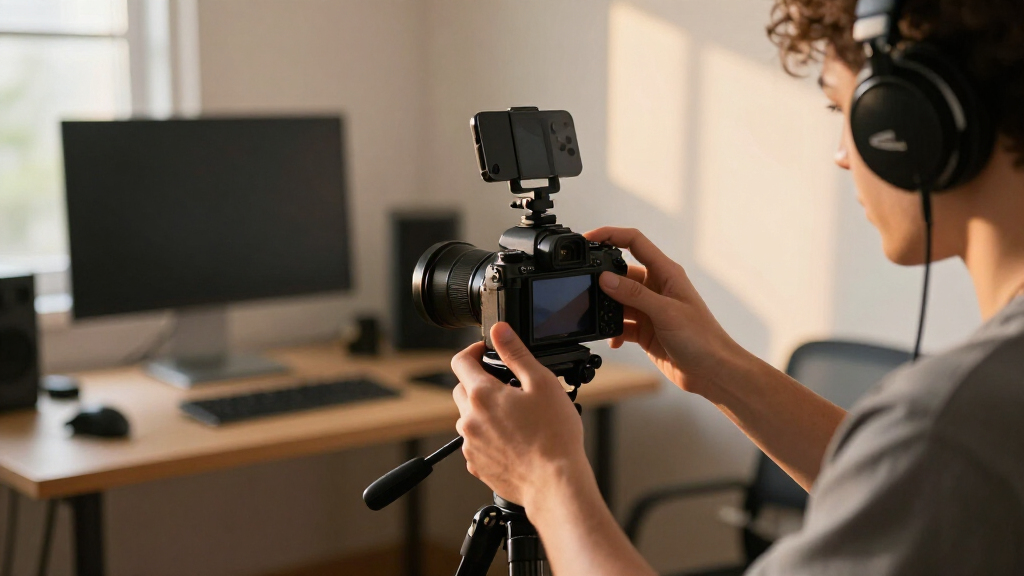

This checklist is for content creators assembling or refreshing a setup for recording, streaming, and video calls. The picks cover audio, lighting, camera support, video capture, and hands-on control, so you can focus on the parts that fit your workflow.

Get the latest gadgets delivered free with Prime
- Fast, free delivery on millions of items
- Prime Video, Amazon Music and more included
- Member-only deals all year
Each section covers one gear slot, explains what to check before buying, and gives a quick verdict for the named pick. The order moves from sound and on-camera presence to lighting, stability, capture, and control.
Use the checklist to match each item to your current devices and recording space. Check connections and compatibility before choosing, and prioritize the gear that addresses your biggest setup gap first.
USB Microphone
A dedicated microphone can make a creator setup easier to manage when voice is central to a recording or stream. The Shure MV7+ is described as a USB-C and XLR dynamic podcast microphone, so the key decision is which connection fits the gear you already use. Before buying, check what inputs your computer, mixer, or other recording equipment supports and whether you plan to connect over USB-C or XLR.
A common mistake is choosing by connector name alone without checking the full signal path. Confirm that the cable and any additional equipment you intend to use match your setup. Also consider where the microphone will sit, how much desk or stand space is available, and whether its placement works for the way you speak and record. Dynamic microphones are often selected for close voice capture, so think about your usual distance and how consistently you can maintain it.
Shure MV7+ USB-C and XLR Dynamic Podcast Microphone, Black is the named pick for this slot. It may suit creators who want both USB-C and XLR connection options, provided those connections fit their recording chain.
What to look for:
- Confirm your device supports USB-C or your setup supports XLR.
- Check whether the required cable is included or needs to be sourced separately.
- Plan a stable position that suits your desk and speaking distance.
- Make sure the connection route works with your intended recording equipment.
Shure MV7+ USB-C and XLR Dynamic Podcast Microphone, Black

The Shure MV7+ is a dynamic microphone for podcasting, streaming, voiceovers, and recording. It offers USB-C and XLR connectivity, voice isolation, automatic level adjustment, real-time noise reduction, built-in reverb, and a customizable LED touch panel with tap-to-mute control.
Pros:
- USB-C and XLR outputs support simple and studio setups
- Auto Level Mode helps keep audio levels consistent
- Voice isolation and denoising help reduce background noise
- LED touch panel includes level monitoring and tap-to-mute
Cons:
- Requires a corded power connection
- Some features may require compatible devices or software
Best for: Creators choosing between USB-C and XLR in their recording setup.
Not ideal for: Anyone whose available equipment supports neither connection.
Bottom line: Choose it when USB-C or XLR fits your existing recording chain.
Webcam
A webcam is a practical choice when you want a camera dedicated to calls, streams, or desktop recording. The Logitech MX Brio is identified as an Ultra HD 4K webcam in Graphite. Before you buy, check that your computer and the applications you use support the resolution and connection required for your intended workflow.
One common buying mistake is assuming a high-resolution camera automatically fits every setup. Check how the webcam will attach to your monitor or stand, whether the placement gives you a comfortable camera angle, and whether your desk layout leaves room for it. Also consider the space where you record: framing, background, and distance from the camera all affect how the image is composed. Review the product details for the connection type and any included mounting hardware rather than assuming they will suit your devices.
Logitech MX Brio Ultra HD 4K Webcam – Graphite is the pick for this category. It is a fit to consider if a 4K webcam matches your computer, software, and preferred camera placement.
What to look for:
- Confirm your computer and recording apps support the webcam’s resolution.
- Check the connection type against your available ports.
- Verify that the mount works with your monitor or planned stand.
- Plan framing and camera height for your usual seating position.
Logitech MX Brio Ultra HD 4K Webcam – Graphite

The Logitech MX Brio is an ultra HD 4K webcam designed for collaboration and streaming, offering sharp image quality with AI-enhanced features and adjustable controls. It includes noise-reducing microphones, a privacy cover, and compatibility with multiple operating systems and conferencing platforms.
Pros:
- High-quality 4K resolution for sharp video
- AI-enhanced image and noise reduction features
- Flexible controls for customized image settings
- Compatibility with major conferencing platforms
Cons:
- Premium price point may be expensive for some users
- Requires USB-C port for optimal use
- Complexity of advanced controls might be overwhelming for casual users
Best for: Creators who want a webcam identified as Ultra HD 4K.
Not ideal for: Setups whose devices or software do not support the intended resolution.
Bottom line: Check resolution support, connection, and mounting before choosing this webcam.
LED Video Light
Lighting is an important part of a video setup because it helps you shape how the subject appears on camera. The named pick is the NEEWER Upgraded 660 PRO II RGB LED Video Light with App Control and Tr; the supplied product name ends at “Tr,” so confirm the complete listing and included components before purchasing. The name identifies RGB lighting and app control, which may matter if those features suit your workflow.
A common mistake is focusing on color features without checking how the light will be positioned and powered. Review the full product details for dimensions, mounting options, power requirements, and what is included. Think about the room where you record, the distance between the light and your subject, and whether you need a stand or other support. If app control is part of your plan, confirm that the listing explains how it connects to your device and that your phone or tablet is compatible.
For this slot, the NEEWER 660 PRO II RGB LED Video Light is the listed pick, with app control in the provided name. Verify the complete product title and specifications so the exact version and accessories match your setup.
What to look for:
- Check the complete product listing; the supplied name is truncated after “Tr.”
- Confirm power requirements and whether a power supply is included.
- Verify mounting options and whether a stand is included or needed.
- Check app compatibility with your phone or tablet.
- Plan light placement for your recording space and camera framing.
NEEWER Upgraded 660 PRO II RGB LED Video Light with App Control and Tripod Stand

This upgraded RGB LED video light offers adjustable brightness, color temperature, and full RGB spectrum, making it ideal for content creation, streaming, and photography. It features app control, dual power options, and includes two lights with adjustable stands for versatile lighting setups.
Pros:
- High CRI of 97+ for accurate color rendering
- Full RGB spectrum with 360° color control
- App control for remote operation
- Includes adjustable stands and carrying bag
Cons:
- Battery not included, requires separate purchase
- Some users may find app setup complex
- Limited to Bluetooth range of 15 meters
Best for: Creators whose setup can use an RGB LED light with app control.
Not ideal for: Buyers who cannot verify the full product listing or power and mounting details.
Bottom line: Confirm the complete model and included accessories before selecting this light.
Camera Tripod
A tripod can provide a stable place to position a camera during recording. The SIRUI AM-324S+G1 is described as a carbon fiber tripod with a G1 ball head. Before buying, check that the tripod’s stated load capacity supports your camera and any attached accessories, and confirm that its height and folded dimensions work for your space and travel needs.
A frequent mistake is checking only that a tripod includes a head. Verify that the mounting interface works with your camera or camera plate, and review the full specifications for leg sections, height range, and included parts. Consider whether you will use it on a tabletop, floor, or uneven surface, and whether its setup suits the framing you need. The supplied product name does not provide those details, so consult the listing rather than guessing from the model name.
The SIRUI AM-324S+G1 Carbon Fiber Tripod with G1 Ball Head is the named pick in this category. It may fit creators seeking this listed tripod and head combination, provided the specifications align with their camera and shooting locations.
What to look for:
- Match the tripod’s load capacity to your camera and attached accessories.
- Check the height range and folded dimensions in the full listing.
- Confirm the mounting plate or interface fits your camera.
- Review included components and the G1 ball head details.
- Consider whether its setup suits your shooting surfaces and locations.
SIRUI AM-324S+G1 Carbon Fiber Tripod with G1 Ball Head

This carbon fiber tripod supports camera setups weighing up to 44.09 lb and extends to a maximum height of about 60 inches. It weighs 3.8 lb, folds to 22.05 inches, and includes six accessory mounting ports for attaching gear such as monitors, microphones, and lights.
Pros:
- Supports heavy camera setups up to 44.09 lb
- Lightweight carbon fiber construction
- Six accessory ports support modular rig setups
- Corrosion-resistant construction for outdoor use
Cons:
- Maximum height is listed inconsistently as 57 inches and 153 cm
- The product information lists both carbon fiber and aluminum materials
Best for: Creators whose camera and shooting needs match the listed tripod and head.
Not ideal for: Anyone unable to confirm fit, load capacity, or mounting compatibility.
Bottom line: Verify camera fit, capacity, and dimensions in the full specifications.
Capture Card
A capture card belongs on the checklist when your workflow involves bringing video from one device into another. The Elgato 4K X is identified as an HDMI 2.1 capture card. Before purchasing, map the connection between your source device and recording computer, then confirm that both ends and your software support the formats you intend to use.
A common mistake is assuming an HDMI connection alone guarantees compatibility. Check the full product specifications for supported input and output formats, connection to the computer, and system requirements. Make sure your source device can output the signal you want and that your computer has a suitable port. Also review whether your intended recording or streaming application recognizes the card. These details determine whether the card fits your actual workflow; the product name by itself does not establish compatibility with every device.
Elgato 4K X HDMI 2.1 Capture Card is the listed pick for capture. It is worth considering when HDMI 2.1 is relevant to your setup and the complete specifications align with both your source and computer.
What to look for:
- Check the source device’s video output against the card’s supported inputs.
- Confirm the computer connection and system requirements.
- Verify supported formats in the full product specifications.
- Make sure your recording or streaming software supports the card.
- Plan the complete signal path from source to computer.
Elgato 4K X HDMI 2.1 Capture Card

Capture and stream gameplay at up to 4K144 or 1080p240 with HDMI 2.1 and VRR passthrough. The USB capture card offers low-latency recording and works with common streaming apps and HDMI devices, including consoles, computers, and iPhone 15.
Pros:
- Captures up to 4K at 144 fps or 1080p at 240 fps
- HDMI 2.1 with VRR passthrough
- Low-latency capture and lag-free passthrough
- Compatible with popular streaming apps and a range of HDMI devices
Cons:
- Requires a USB 3.2 Gen 2 port for full capture resolution
- Requires a compatible computer and graphics hardware
Best for: Creators whose source and computer can use the card’s supported connections.
Not ideal for: Setups that cannot confirm format, port, or software compatibility.
Bottom line: Match the source, computer, and software to the card’s full specifications.
Audio Mixer
A mixer and controller can help bring audio controls into one part of a creator setup. The Elgato Stream Deck + is named as an audio mixer and studio controller. Before deciding, check how it connects to your computer and which audio devices and applications it supports. Think through the controls you want at hand and whether this device fits the way you record, stream, or manage a studio desk.
A common mistake is treating “mixer” in a product description as proof that it replaces every separate audio device. Review the full listing for inputs, outputs, supported software, and setup requirements. Confirm that it works with your microphone and other audio equipment, and check whether your operating system and preferred applications are supported. Consider desk space and control placement too: a device is most useful when you can reach it comfortably without disrupting your recording position.
The Elgato Stream Deck + Audio Mixer and Studio Controller is the pick for this slot. It may suit creators looking for a combined controller and audio-focused device, once the detailed compatibility and connection requirements are confirmed.
What to look for:
- Confirm computer connection and operating system requirements.
- Check compatibility with your microphone and other audio equipment.
- Review supported applications and setup requirements.
- Verify the inputs and outputs listed for the exact model.
- Plan desk placement so controls are easy to reach.
Elgato Stream Deck + Audio Mixer and Studio Controller

A customizable studio controller with eight LCD keys, four multifunction dials, and a touch strip for managing audio, video, lighting, and other workflows. It supports plugins and profiles for apps such as OBS, Twitch, Discord, and Spotify, and connects via USB-C.
Pros:
- Customizable LCD keys, touch strip, and dials
- Can trigger multiple actions and switch profiles automatically
- Supports plugins for a wide range of streaming and creative apps
- Includes access to Wave Link mixing software and the Stream Deck Store
Cons:
- Requires compatible Windows or macOS software
- The listed weight differs between specifications
Best for: Creators who want an audio mixer and studio controller in one listed device.
Not ideal for: Anyone whose equipment or applications are not confirmed as compatible.
Bottom line: Check supported devices, applications, and connections before adding it to your setup.
Build your kit in buying priority order: start with the gap that affects your work most, such as voice capture, camera framing, or lighting. Then add support and workflow gear like a tripod, capture card, or controller after checking how each piece connects to what you already own.
You can assemble a useful setup one slot at a time. Use the compatibility checks in each section, verify the full product listings, and choose the next item that fits your space and creative routine.
Fall Picks
fall essentials
As an affiliate, we earn on qualifying purchases.