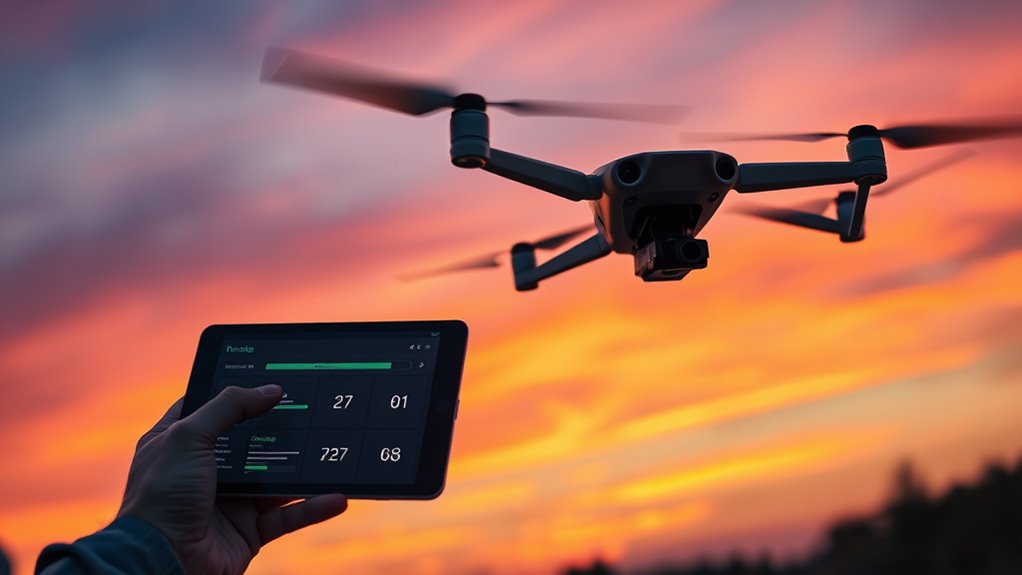

To update your drone’s firmware, ensure it and your remote are fully charged, then connect your device to the drone through the manufacturer’s app or desktop software. Check for updates, and follow on-screen instructions to download and install the latest firmware smoothly. Keeping your firmware updated improves safety, stability, security, and adds new features. If you keep these steps in mind, you’ll guarantee your drone stays in top shape with greater capabilities.
Key Takeaways
- Check for firmware updates via the manufacturer’s app or website regularly to ensure your drone stays current.
- Fully charge your drone and remote controller before starting the update to prevent power loss.
- Follow specific instructions for your drone model, whether updating through mobile apps, desktop software, or SD card.
- Keep firmware files organized, from official sources, and verify their compatibility before installation.
- Updating firmware improves safety, performance, security, and unlocks new features like obstacle avoidance and advanced flight modes.
Understanding the Importance of Firmware Updates

Firmware updates are essential because they directly impact your drone’s safety, performance, and security. When you update the firmware, you fix bugs that could cause crashes or unstable flights. Security patches protect your drone from hacking or unauthorized access, keeping your data and controls safe. Updated firmware also boosts your drone’s capabilities, like improving flight stability, extending battery life, or enhancing camera quality. Plus, new features often become available, such as better obstacle avoidance or advanced flight modes. Staying current with firmware guarantees your drone complies with the latest regulations, reducing the risk of legal issues. Ignoring updates can leave your drone vulnerable and limit its potential. Regular updates keep your drone reliable, safe, and functioning at its best. Additionally, European cloud innovation can enhance the security and efficiency of your firmware management systems, ensuring updates are delivered reliably and securely. Implementing firmware management systems can streamline the update process and ensure your drone stays current with minimal effort. Furthermore, adopting secure update protocols helps prevent tampering or malicious interference during the update process.
Preparing Your Drone and Equipment for the Upgrade

Before starting the update, you should confirm your drone and remote controller are fully charged to prevent interruptions. A fully charged battery ensures the process runs smoothly without unexpected power loss, which could corrupt the firmware or brick your device. Additionally, reviewing your drone’s ventilation considerations can help prevent overheating during operation. To prepare effectively, consider these steps:
Always ensure your drone and remote controller are fully charged before updating to prevent power loss or device issues.
- Clear enough storage space on your mobile device or computer for the firmware download.
- Close all unnecessary apps to avoid conflicts during the update.
- Remove any accessories or attachments that might interfere with the update process.
- Place your drone in a stable, safe environment free of vibrations or extreme temperatures.
- Verify your internet connection is stable if downloading via app or online sources.
Proper preparation reduces risks and ensures a seamless firmware upgrade experience.
Checking for Firmware Updates

To guarantee your drone is running the latest software, you need to regularly verify for available firmware updates. Most manufacturers provide this feature through their mobile apps, desktop software, or website. Start by powering on your drone and connecting it to your device. Open the manufacturer’s app or software, and look for a “Check for Updates” button or menu option. Some apps automatically notify you when a new firmware is available. If not, manually initiate a check. Make sure your internet connection is stable, as this process downloads the latest firmware files. Regularly checking ensures you catch updates early, keeping your drone secure, reliable, and equipped with the newest features. Staying current prevents potential issues and enhances overall flight experience. Modern drone technology leverages firmware updates to improve functionality and safety, and understanding these software improvements can help you make the most of your drone’s capabilities. Additionally, many firmware updates include security patches that protect your device from vulnerabilities. Performing these updates promptly can also help prevent compatibility issues with other hardware or software components.
Updating Through the Mobile App

Before starting the update through the mobile app, make sure your drone and controller batteries are fully charged and your device has a stable internet connection. Open the app and connect to your drone, then follow prompts to check for available firmware updates. Tap the update button when prompted, but don’t turn off the drone or close the app during the process. Remember, keeping firmware up-to-date enhances the drone’s safety and functionality, ensuring a smooth flying experience. Additionally, staying current with firmware updates can help prevent potential software compatibility issues that might affect your drone’s performance. Updating firmware regularly also helps eliminate bugs and improves overall stability, making firmware management an essential part of drone maintenance. Incorporating local automation features can also optimize your drone’s operation and improve overall safety during flights, especially when dealing with complex system issues or unexpected malfunctions.
Preparing for App Update
Ensuring your device is ready for a firmware update through the mobile app is essential for a smooth process. Before starting, make sure your drone and remote controller are fully charged to prevent power loss mid-update. Verify that your mobile device has a stable internet connection to download the firmware efficiently. Close all other apps on your device to avoid interruptions. Back up any important flight data or settings, just in case. It’s also helpful to check the manufacturer’s website for specific instructions or warnings related to the update. Preparing your device carefully minimizes risks and guarantees the update proceeds without issues. Additionally, being aware of Free Floating can help prevent potential issues during the update process. Understanding the network infrastructure involved in firmware updates can also improve your success rate. Being familiar with firmware update protocols can help you troubleshoot if problems arise, especially considering the complex nanotechnology concepts that underpin some advanced drone systems.
Navigating Firmware Download
When updating your drone’s firmware through the mobile app, the process begins with powering on your drone and remote controller, then connecting your mobile device to the drone via Bluetooth or Wi-Fi, depending on the manufacturer’s instructions. The app will check for updates automatically and notify you if a new firmware version is available. Tap the prompt to start downloading. During this phase, you’ll see progress bars and status updates. Use the table below to understand key indicators:
| Status | What it Means | Action Needed |
|---|---|---|
| Downloading | Firmware is being downloaded | Wait until complete |
| Verifying | Firmware is verifying integrity | Do not disconnect |
| Installing | Firmware is installing | Keep device powered on |
Following these steps guarantees a smooth update process. Also, ensure your drone has a stable power source and sufficient battery life to prevent interruptions during the update, which can affect the drone’s firmware integrity and overall performance. To minimize the risk of errors, avoid interruptions during installation, such as disconnecting the device or shutting it down prematurely. Additionally, understanding the thermal behavior of your drone during updates can help prevent overheating issues that might compromise the process.
Using Desktop Software to Install Firmware
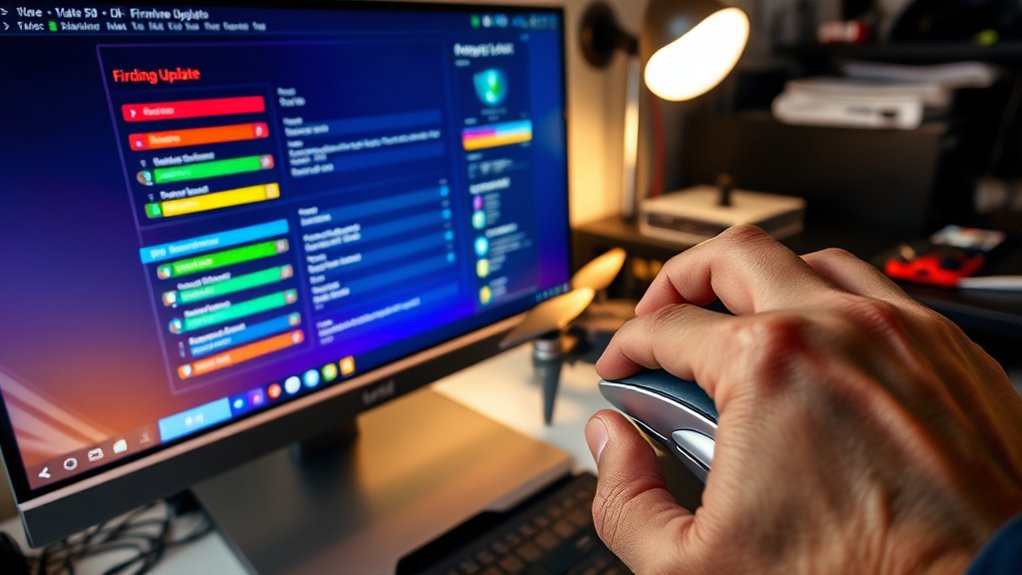
When using desktop software to update your drone’s firmware, make sure you connect your drone correctly with a USB cable to prevent communication issues. Keep your firmware files organized and verify you’re selecting the right update to avoid errors. Proper management of these files helps guarantee a smooth installation process.
Connecting Your Drone Correctly
To install firmware updates using desktop software, you need to connect your drone properly to your computer. Confirm the drone is powered off before connecting it with a USB cable. Use the cable recommended by the manufacturer to avoid connection issues. Once connected, turn on the drone; the software should detect it automatically. Make sure your computer recognizes the device and that no other programs interfere during the update. Keep your drone on a stable surface to prevent disconnections. Use the latest version of the manufacturer’s desktop software for smooth operation.
- Use a compatible USB cable recommended by the manufacturer
- Power off the drone before connecting
- Confirm your computer recognizes the drone
- Avoid disconnecting during the update
- Ensure the drone is on a stable surface
Managing Firmware Files Properly
Managing firmware files properly is vital to guarantee a smooth update process with your desktop software. First, always download the firmware file directly from the manufacturer’s official website to avoid corrupted or malicious files. Save the firmware to a dedicated folder that’s easy to find, and avoid renaming or modifying the file. Before starting the update, verify that the file matches your drone model and firmware version requirements. Keep backups of your original firmware or settings, if possible, in case you need to revert. Make sure your computer’s antivirus software isn’t blocking the download or installation process. Once downloaded, do not move or delete the file until the update completes successfully. Proper management ensures a hassle-free update and reduces the risk of bricking your drone.
Updating Firmware via SD Card Method

Updating your drone’s firmware via the SD card method is a straightforward process that lets you update without needing a mobile app or desktop software. First, download the firmware file from the manufacturer’s website onto your computer. Then, copy the file directly to the root directory of a microSD card—don’t place it inside a folder. Next, insert the microSD card into your drone and power both the drone and remote controller on. The drone will automatically detect the firmware file and begin the installation process. This process can take several minutes, so avoid turning off the drone or removing the SD card during the update.
Update your drone firmware effortlessly by copying the file to a microSD card and powering on—the drone handles the rest automatically.
- Download firmware from the official website
- Copy file to microSD card’s root directory
- Insert SD card into the drone
- Power on drone and controller
- Wait for automatic installation
Verifying the Successful Installation
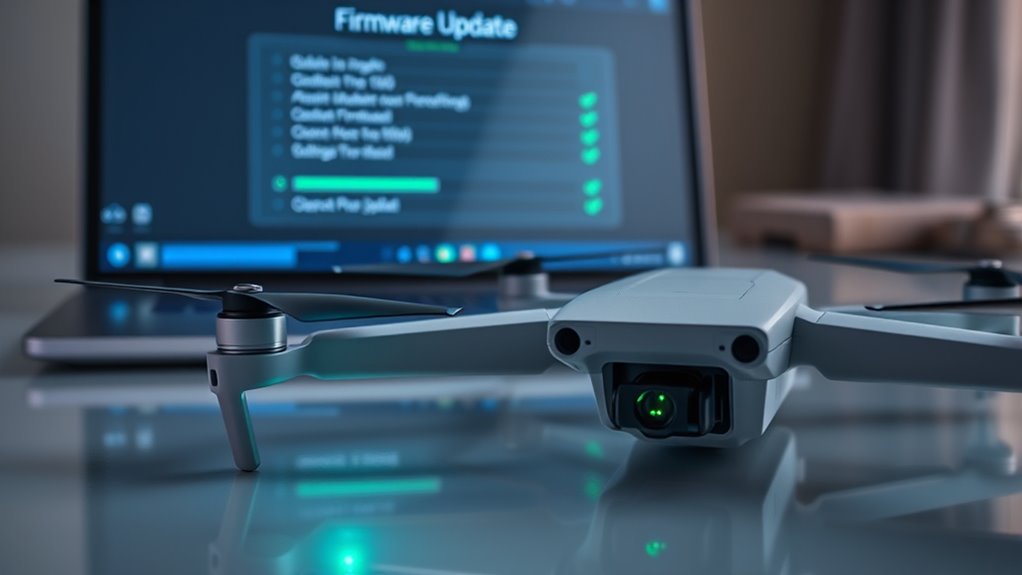
After completing the firmware update, it is vital to verify that the installation was successful. First, check the firmware version in the app or device settings; it should match the latest release. Next, run a quick system check by testing key functions like flight controls, camera, and GPS to confirm proper operation. To emphasize, consider this table:
| Step | What to Verify | Importance |
|---|---|---|
| Firmware version | Updated to latest version | Confirms successful installation |
| Flight controls | Respond smoothly | Ensures safe operation |
| Camera and sensors | Function correctly | Validates feature updates |
| GPS and stability | Lock and hold position properly | Checks overall system integrity |
Perform these checks to ensure your drone’s firmware update was successful and your drone is ready for flight.
Troubleshooting Common Update Issues
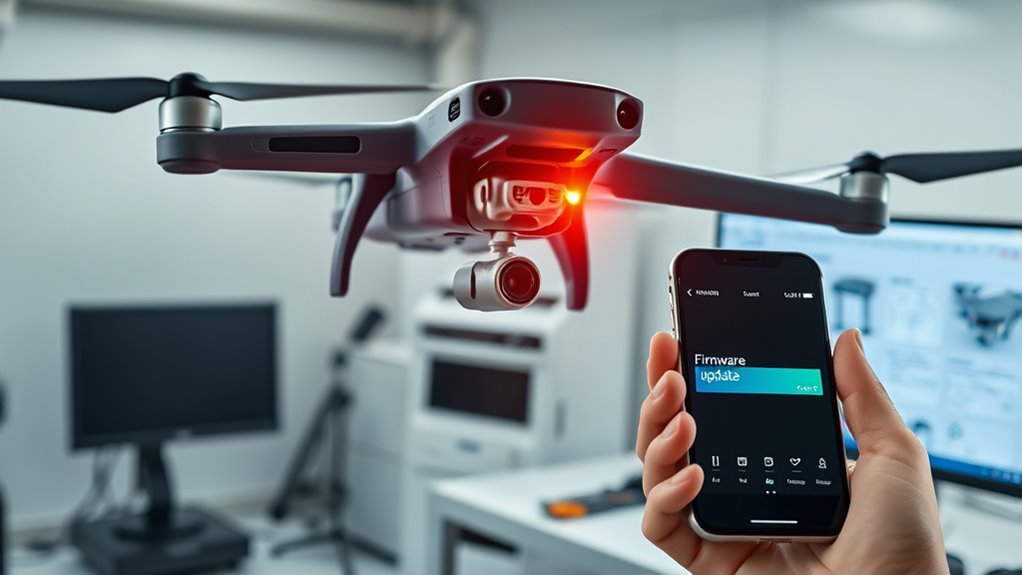
When firmware updates don’t proceed as planned, troubleshooting becomes essential to get your drone back in the air. First, check your internet connection—an unstable connection can cause download errors. Confirm your batteries are fully charged; low power can interrupt the update process. If the update stalls, restart both your drone and device, then try again. Confirm you’re using the latest version of the app or software. If problems persist, try updating via a different method, like using an SD card or desktop software. Finally, consult the manufacturer’s support resources or forums for specific advice.
- Verify your device’s internet stability
- Fully charge your drone and controller
- Restart your devices and retry the update
- Use an alternative update method
- Seek manufacturer support if needed
Frequently Asked Questions
How Often Should I Update My Drone’s Firmware?
You should update your drone’s firmware whenever a new version is released, typically every few months or as needed. Regular updates fix bugs, enhance performance, improve security, and add new features. Stay informed by checking the manufacturer’s website or app notifications. Don’t wait too long, as outdated firmware can cause stability issues or security vulnerabilities, so keeping your drone current guarantees safe, reliable flights and access to the latest capabilities.
Can I Revert to an Older Firmware Version?
You can’t usually revert to an older firmware version once you’ve updated your drone, as manufacturers often lock out previous versions for safety and security reasons. Think of it like trying to put the genie back in the bottle. If you’re facing issues after an update, contact support or check community forums for advice. Always keep a record of your firmware versions to avoid surprises down the road.
What Should I Do if the Update Fails?
If the update fails, first verify your drone and controller have full batteries and a stable internet connection. Restart both devices and try the update again. If it still doesn’t work, check for any error messages and consult the manufacturer’s troubleshooting guides. You might also try updating via a different method, like using a microSD card or desktop software. If issues persist, contact customer support for assistance.
Are Firmware Updates Safe for My Drone?
Firmware updates are generally safe for your drone when you follow proper procedures. They fix bugs, improve security, enhance performance, and add new features, keeping your drone running smoothly and securely. To avoid issues, make certain your device has a stable internet connection, fully charge the batteries, and don’t interrupt the process. Always download updates from official sources, and review instructions before updating to protect your drone’s safety and functionality.
Do Firmware Updates Affect My Drone’s Warranty?
Firmware updates generally don’t void your drone’s warranty if you follow the manufacturer’s instructions. In fact, updating firmware can keep your drone compliant with regulations and fix bugs that might cause issues. However, if you intentionally modify the firmware or damage the drone during the update process, your warranty might be affected. Always read the warranty terms and update carefully to protect your coverage.
Conclusion
Keeping your drone’s firmware up to date is like planting seeds for future flights—each update a step toward better performance and safety. Don’t let outdated software ground your adventures; embrace the upgrades and release your drone’s full potential. Remember, a well-maintained drone isn’t just equipment—it’s your trusted wingman in the skies. So stay current, troubleshoot confidently, and let your drone soar higher than ever before, turning every flight into a story worth telling.